 PawnEasy Pro
Adding a customer
Open the Customers tab and tap Add customer. The form is in three parts:
- Personal — full name, mobile number, WhatsApp number, an optional email, date of birth and gender.
- Address — two address lines, city, pincode and state.
- Identity — the ID proof you took, and its number.
Only the name and mobile number are required. Everything else can be filled in later from the customer's own page — a customer standing at the counter with gold should not be made to wait while a pincode is looked up.
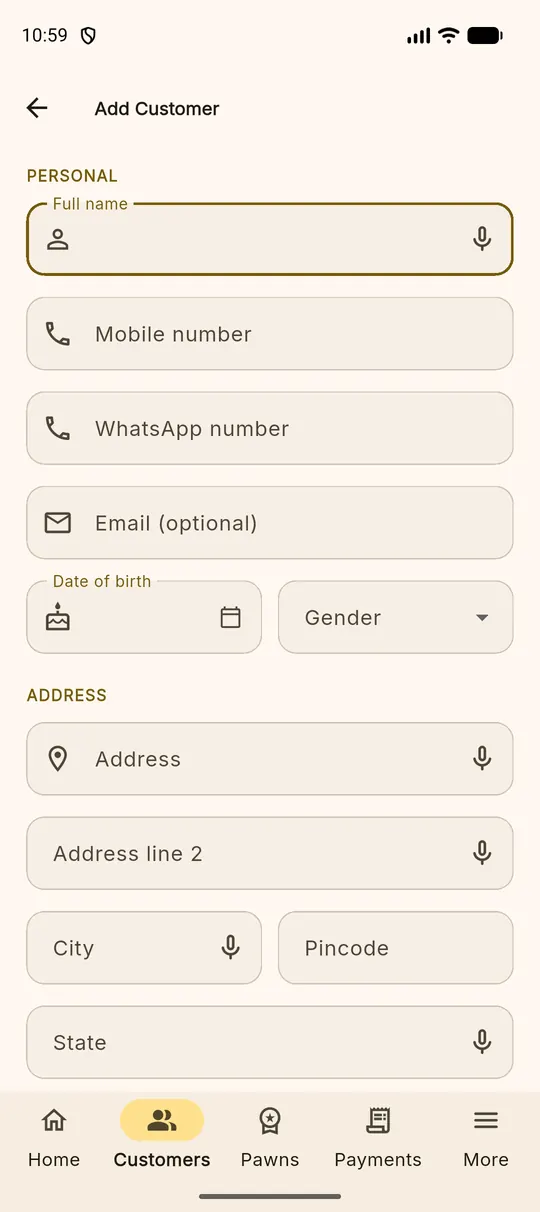
The microphone beside a field Tap it and speak instead of typing — useful for long Tamil names and addresses. It is deliberately absent from money, weight and ID fields, where a misheard digit would be expensive.
Identity, and what happens to it
Aadhaar and PAN numbers are encrypted before they are stored. After you save one, nobody — not your staff, not us — can read it back in full. The app shows only the last four digits, which is enough to confirm you are looking at the right document, and the full number never leaves the shop.
Photographs of the document itself are attached to the customer under the Documents tab, along with a photograph of the customer if you take one. Those are yours, stored with your books.
The customer page
Tap any customer to open their page. Four tabs:
| Tab | What it shows |
|---|---|
| Overview | Contact details, address, ID on file, and how much they currently owe you |
| Pawns | Their loans, live and closed |
| Payments | Every payment they have made, newest first |
| Documents | ID and customer photographs |
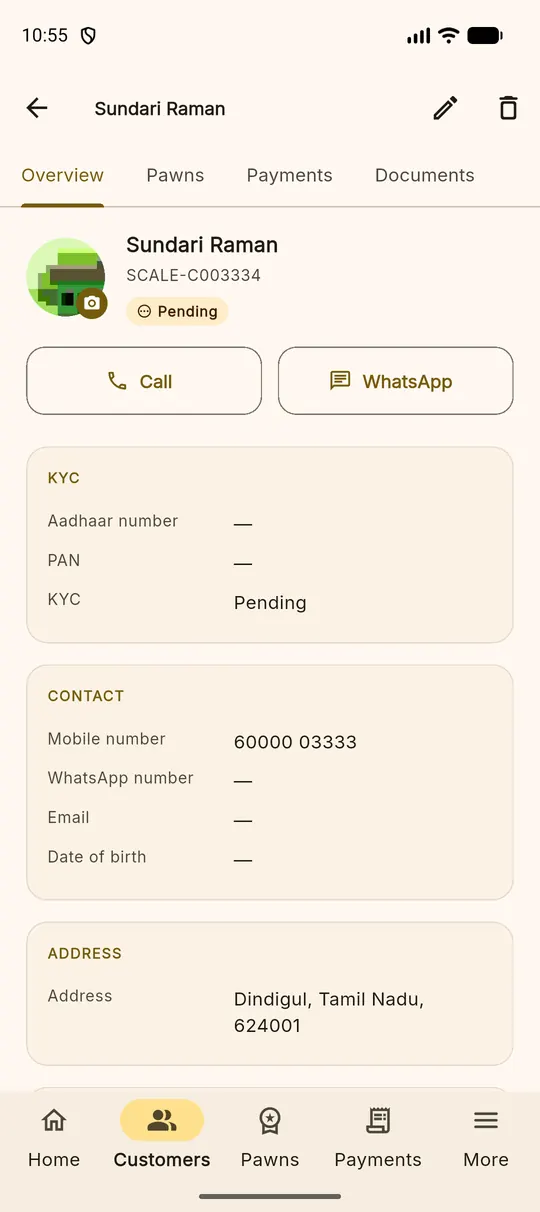
The pencil at the top right edits the customer; the bin removes them. A customer with live loans cannot be removed — close the loans first.
Using a customer in a pledge
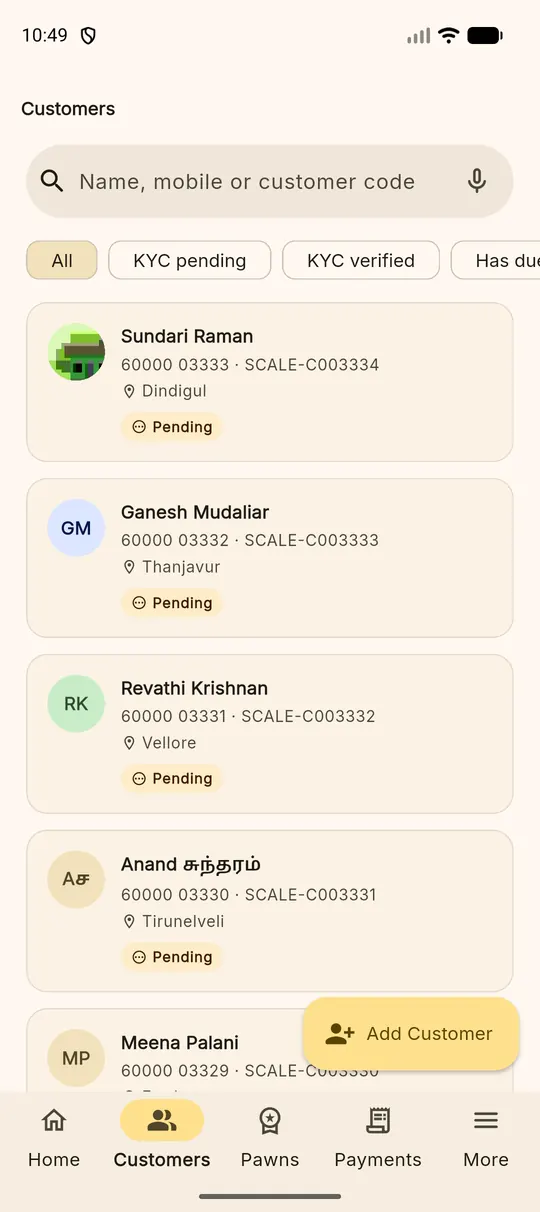
You do not need to visit this page to write a loan. Step 1 of the pledge wizard searches the same list by name or mobile number, and offers New customer if nobody matches. See Taking a pledge.
One person, one record Before adding somebody, search their mobile number. Two records for the same person split their history in half and make the customer exposure report lie to you.