 PawnEasy Pro
1. Create your account
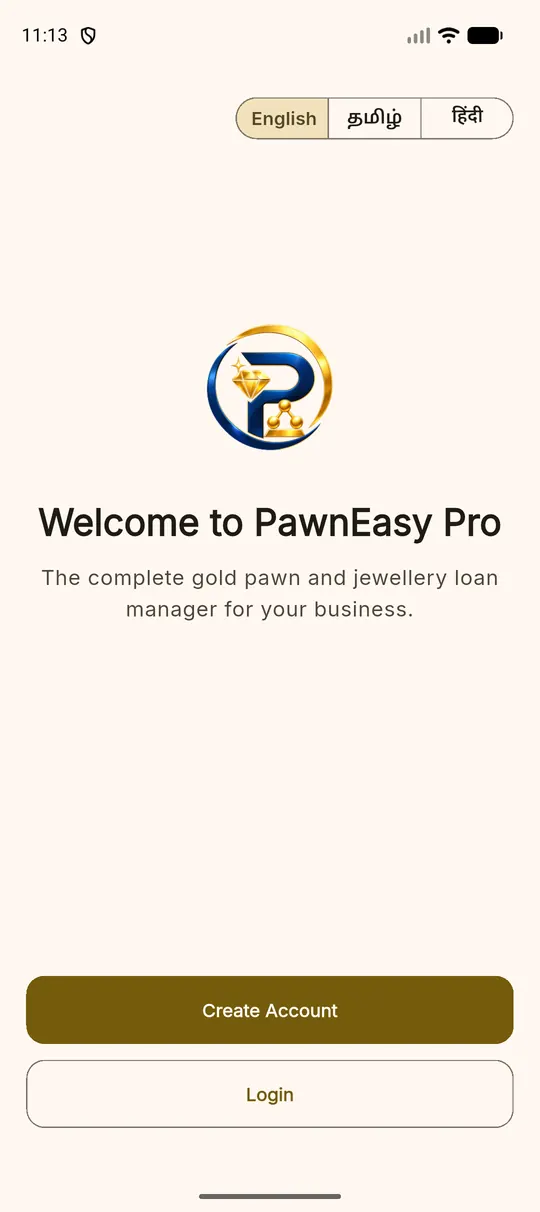
Open the app, or go to app.pawneasypro.com in a browser. The first screen offers Create Account and Login, and lets you switch the whole app between English, Tamil and Hindi before you have signed in.
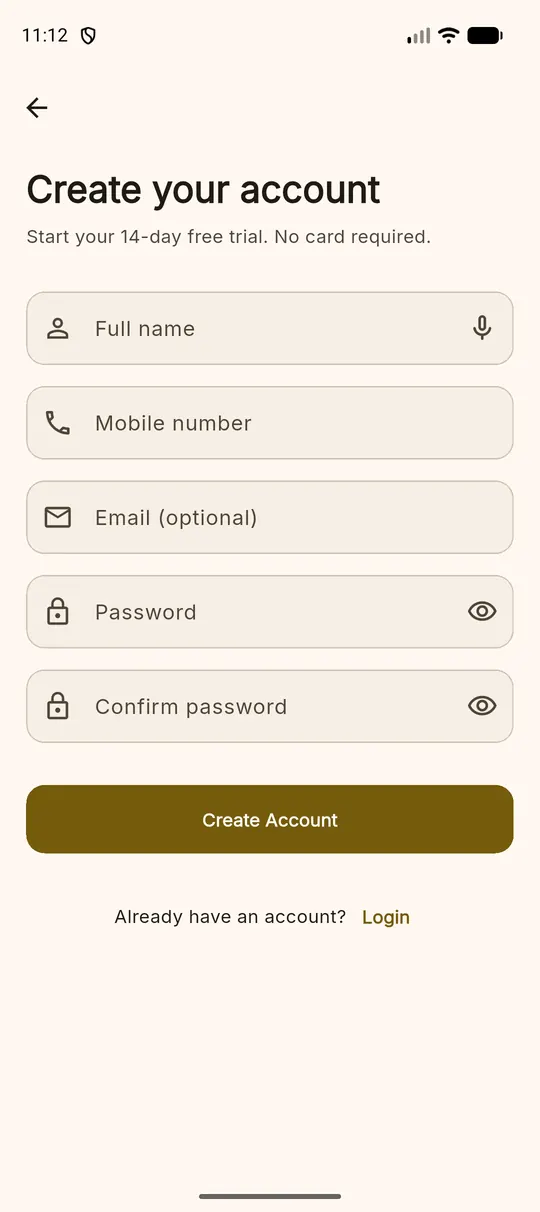
Registration asks for your name, the mobile number you will sign in with, an optional email and a password. The mobile number is your username, so use one that will stay with the business.
2. Create your business
Straight after registering, the app asks for the shop itself: business name, owner name, the contact and WhatsApp numbers customers know you by, the address, and your GST number if you have one. This is the shop your pledges, customers and staff all belong to, and it is what appears at the top of every receipt.
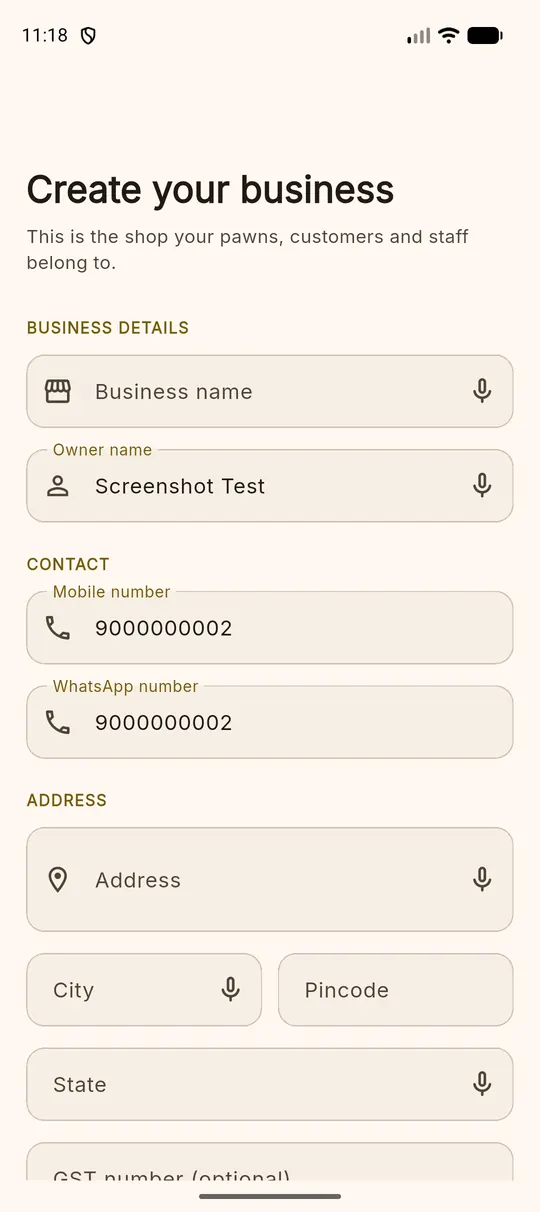
The WhatsApp number matters Reminders to your customers go out from the number you put here, so use the one the shop actually answers.
3. Set today's gold rate
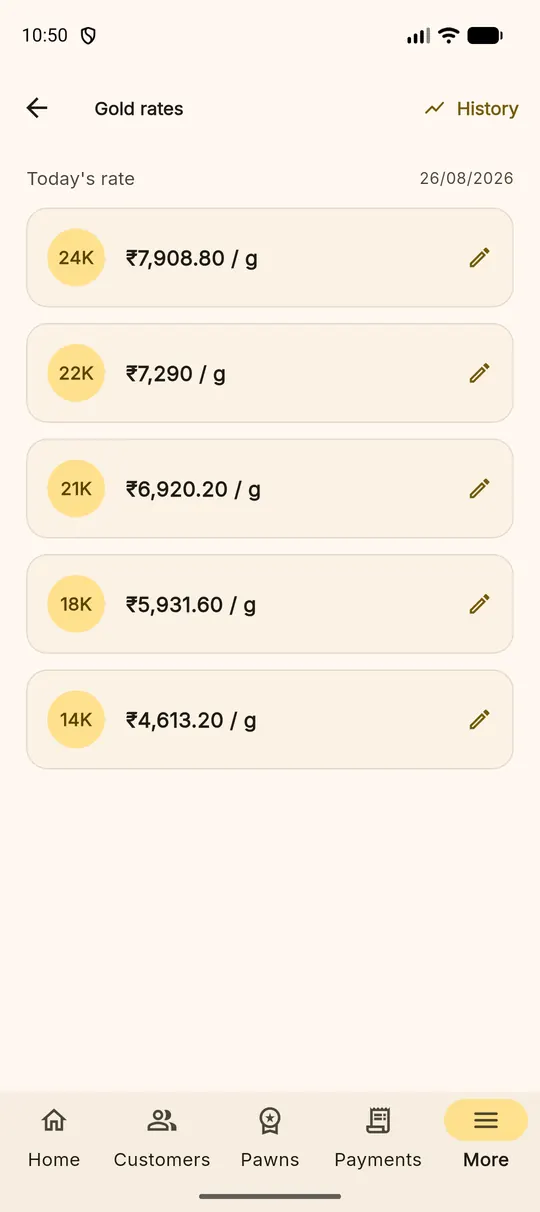
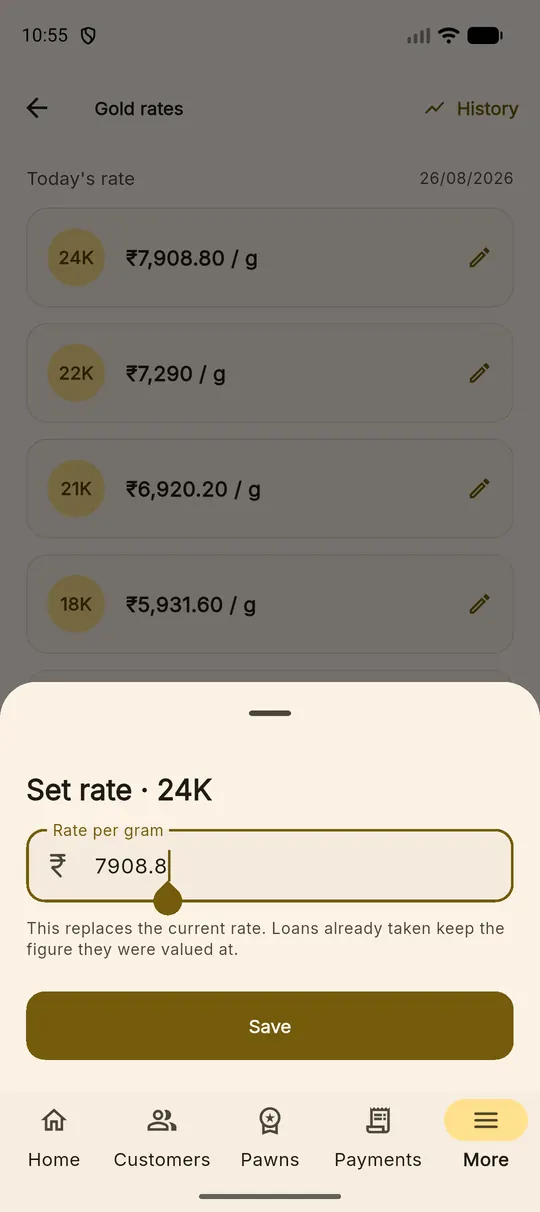
Go to More ▸ Gold Rates. Tap the pencil beside a karat, type the rate you are lending against today, and save. Do the karats you actually deal in — most shops set 22K and 24K and leave the rest.
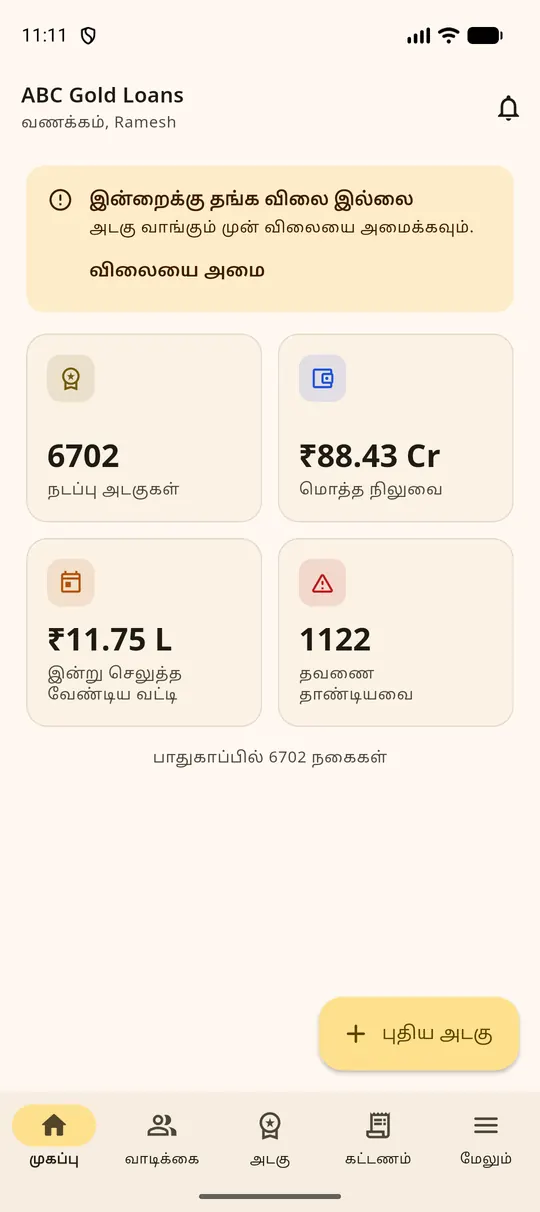
Until a rate is set, the dashboard shows an orange banner reading No gold rate for today with a Set rate link, and the pledge wizard will not value articles. This is deliberate: a pledge valued against yesterday's rate is a loss you find out about later.
4. Tell it where the gold will live
Add your storage locations in the web portal under Configure ▸ Stock: a name a clerk would recognise (Strongroom locker A), the type — locker, bank or third party — the branch it stands in, and how many packets it holds. For a bank locker or a custodian, record who holds it and how to reach them.
Then More ▸ Storage in the app shows each location with what is in it, its weight and how full it is. Tap one to see the articles it holds.
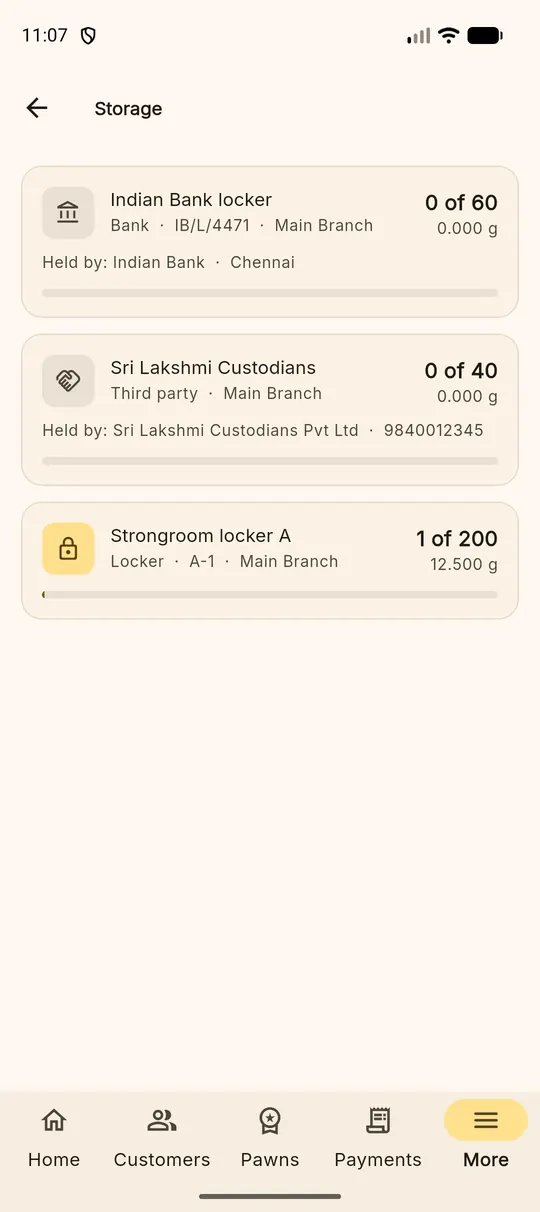
You can lend before you finish this Articles taken in without a place recorded appear as unplaced on the storage page. Nothing is blocked at the counter.
5. Add your staff
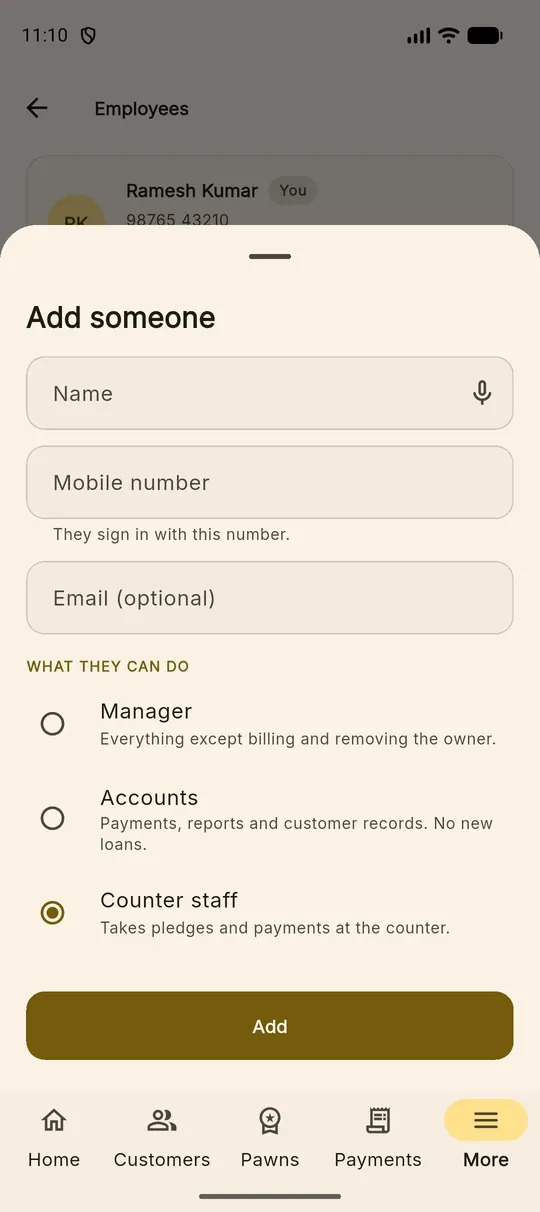
More ▸ Employees ▸ Add someone. Enter their name and mobile number — that number is how they sign in — and choose what they can do: manager, accounts, or counter staff. They set their own password the first time they sign in.
See Staff and settings for what each role can reach.
6. Choose your language and check the settings
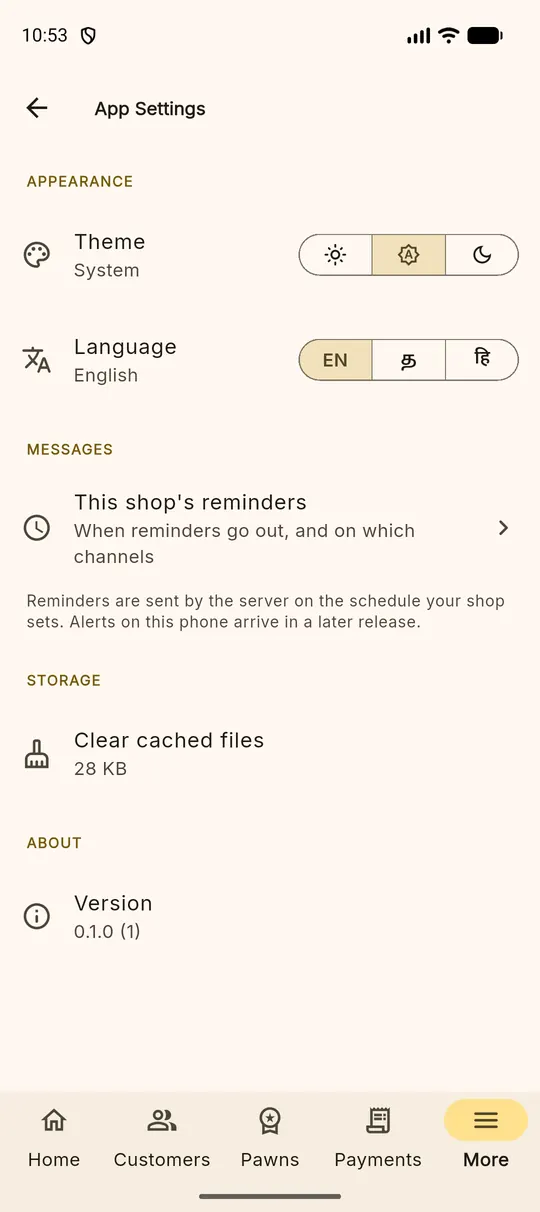
More ▸ App Settings holds the things each person sets for themselves: theme (light, automatic or dark) and language (English, தமிழ், हिंदी). A clerk can work in Tamil while the accountant works in English — it is a per-person choice, not a shop one.
7. Write your first pledge
You are ready. Tap New Pawn on the dashboard or the Pawns tab and follow Taking a pledge. If you want to practise first, write a pledge for a friendly customer and redeem it the same day — the daybook will show both entries and nothing is harmed.