 PawnEasy Pro
The four roles
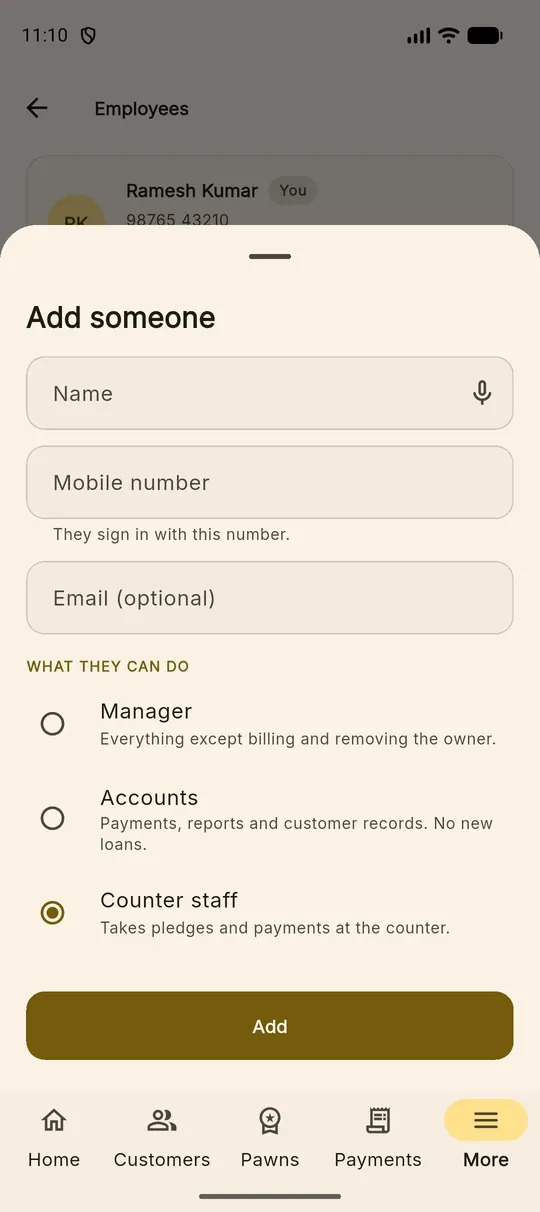
Everybody signs in with their own mobile number and password, and every pledge, payment and movement keeps the name of the person who made it. What they can reach depends on one choice:
| Role | Can do |
|---|---|
| Owner | Everything, including billing and removing staff |
| Manager | Everything except billing and removing the owner |
| Accounts | Payments, reports and customer records — no new loans |
| Counter staff | Takes pledges and payments at the counter |
The split that matters most is the last two: the person who writes loans and the person who reconciles them should not always be the same person, and with these roles they need not be.
Adding and changing staff
More ▸ Employees lists everyone with their role and branch. Add someone takes a name, a mobile number, an optional email, and the role. Tap an existing person to change their role or to remove their access — the record of what they did stays; only their ability to sign in goes.
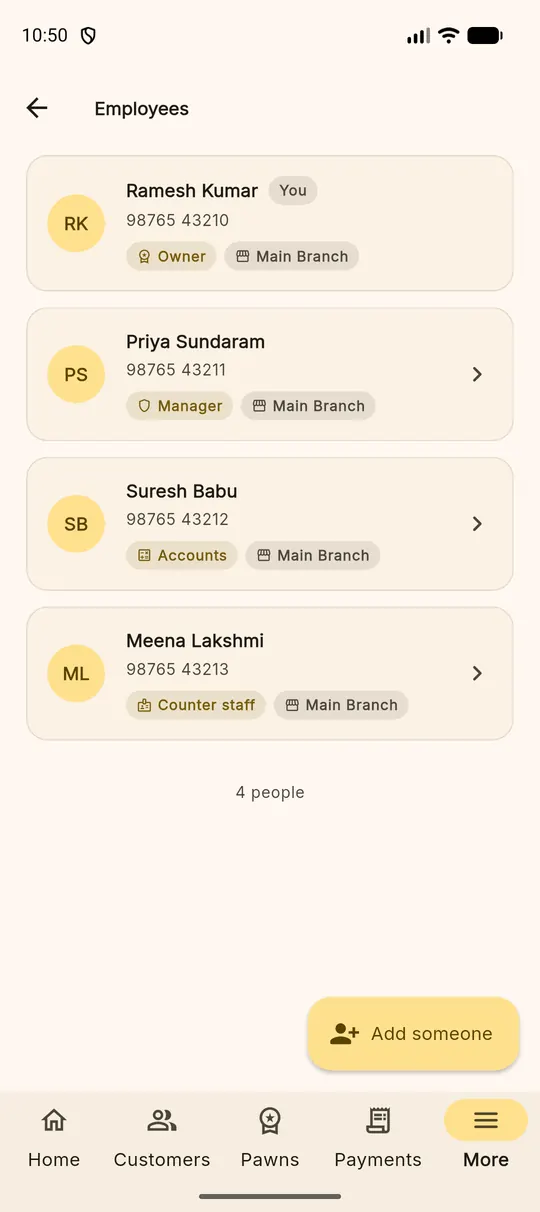
A branch is a home, not a wall Staff are given a home branch so their day starts in the right place. They can still see the company's whole book unless you narrow it — the branch is where they work, not a fence around what they may know.
App settings
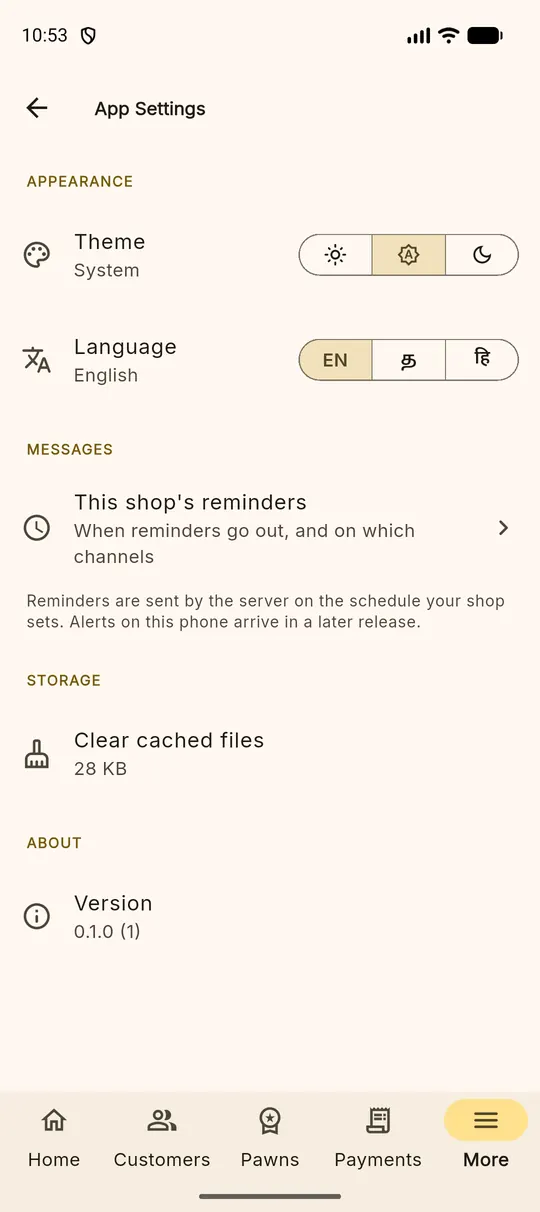
More ▸ App Settings holds the choices each person makes for themselves:
- Theme — light, automatic or dark.
- Language — English, தமிழ் or हिंदी, applied immediately and remembered for that person.
- This shop's reminders — a shortcut into the reminder schedule.
- Clear cached files — frees the space used by downloaded receipts and photographs. Nothing in your books is affected.
- Version — useful to quote when you contact support.
Trial and subscription
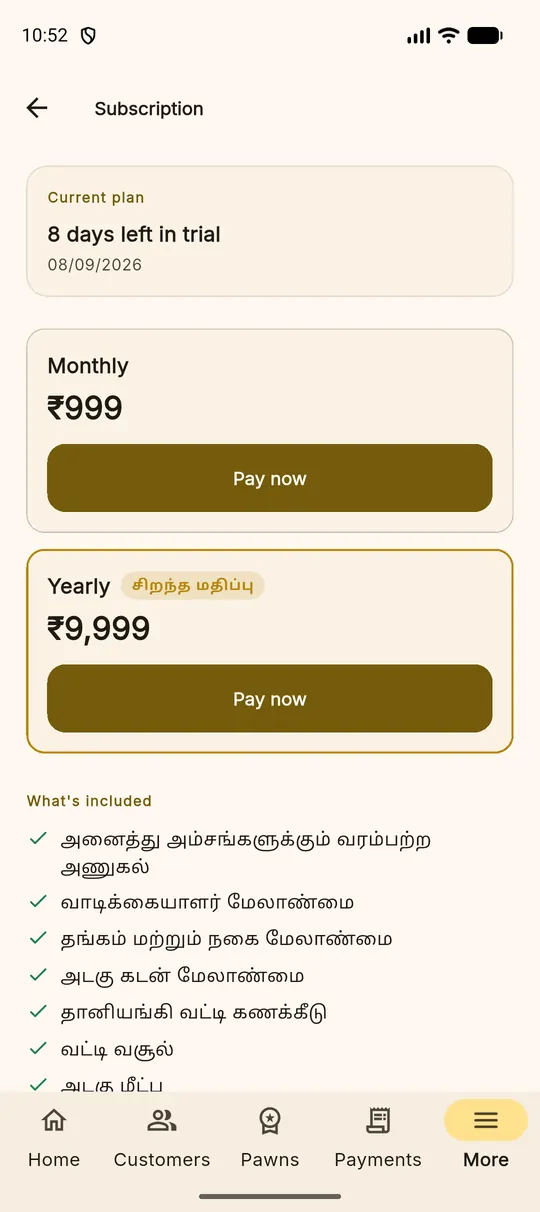
More ▸ Subscription shows how many days remain in your trial and the two plans — monthly and yearly. Payment goes through the Google Play Store from inside the Android app, so renewals and cancellation are managed in your Play account like any other subscription.
If a trial or subscription lapses, your books become read-only: everything is still there to look up, print and export, and subscribing turns writing back on immediately.
Signing out
At the bottom of More, under Account. Signing out on a shared counter handset at the end of a shift is a good habit — the next person signs in as themselves, and the book records who did what.